


Remember huddling around a tiny TV with friends, battling for first place in Mario Kart 64? The controllers, the music, the friendly rivalries—it was the best. But what if your friends now live across the country? Good news: you can recapture that magic right from your computer, and this guide will show you exactly how. To find more, check on dina189
Learning how to play N64 games online is much easier than you might think. You don’t need any special hardware or deep technical skills, and in about 15 minutes, you can be up and running. We’ll walk you through every single click to get you started, from downloading the right software to inviting your first friend to a game.
To make this happen, you only need two key ingredients. The first is an “emulator,” which is a simple program that lets your modern computer pretend it’s a virtual Nintendo 64. The second is a “ROM,” which is just the digital version of a game cartridge, similar to how an MP3 is the digital version of a song from a CD.
This guide will show you exactly how to put those pieces together for some fantastic retro gaming online. We’ll start by getting a single-player game running, then configure your controller, and finally, connect with a friend. Your next GoldenEye 007 or Super Smash Bros. match is just a few steps away.
What Are Emulators and ROMs? Your Virtual N64 and Digital Game Cartridges
To play classic N64 games on your computer, you first need a “virtual console.” This is where a program called an emulator comes in. Think of an N64 emulator as a piece of software that teaches your modern PC or Mac how to behave exactly like a Nintendo 64 console. It’s the engine that runs the games, processes the graphics, and understands your controller’s commands, creating the authentic experience right on your screen.
Of course, a console is useless without a game cartridge. In the digital world, these cartridges are called ROMs. A ROM is a computer file that contains all the data from a physical N64 game cartridge. Just as an MP3 is a digital copy of a song from a CD, a ROM is a digital copy of a game like The Legend of Zelda: Ocarina of Time. To build your own classic game collection, you would need a separate ROM file for each title.
Putting it all together is simple: the emulator is the console, and the ROM is the game. You need both to play. The emulator program opens the ROM file, and just like that, you’re back in 1998, ready to race or adventure. This relationship is the foundation for getting an N64 emulator online and working. Naturally, this raises an important question about where these ROM files come from and the rules around using them.
Is It Legal to Play N64 Games Online This Way?
Now that you know what emulators and ROMs are, you might be wondering: is it legal to play a Nintendo 64 game without a console this way? The emulator software itself is perfectly fine to use. These programs are often created by passionate fans as a way to preserve classic games, and using one is not against the law. The legal questions, however, begin with the ROMs—the game files themselves.
The situation with ROMs exists in a legal gray area. In many places, it’s generally accepted that you can create a digital backup copy (a ROM) of a game cartridge you physically own for your own personal use. However, downloading ROMs from the internet for games you don’t own is a different story. This is widely considered copyright infringement, similar to downloading movies or music you haven’t paid for from an unauthorized source.
Because of this, we cannot provide links to any site that hosts ROMs. The only way to ensure you are respecting copyright law is by using digital copies of games you have legally purchased. With that important detail covered, you’re ready to get your virtual console set up. Let’s start by installing the emulator.
Step 1: Install Your Virtual N64 (Project64 Emulator Setup)
To play N64 games on your computer, you first need the virtual console itself. While there are a few different N64 emulators, we recommend starting with Project64. It’s one of the most popular, user-friendly options available for Windows and is well-suited for playing online with friends. Think of this step as getting the main hardware ready before you can pop in a game.
Getting it running is a straightforward process, much like installing any other program. You just need to grab the official setup program and let it do the work for you.
- Navigate to the official Project64 website to ensure you’re getting a safe, legitimate copy.
- Download the latest version. This will save a special installer file to your computer (usually in your “Downloads” folder).
- Find and double-click that file to launch the setup wizard. You can safely leave all the options at their default settings; just click “Next” until it’s finished.
Once the installation is complete, Project64 will appear in your Windows Start Menu, ready to go. Your virtual N64 is now set up, but a console is no fun without games. In the next step, we’ll show you how to tell the emulator where to find them.
Step 2: Build Your Digital Game Library
Now that you have your virtual console, you need a place to keep your games. The best way to manage your Nintendo 64 ROM library is to create a single, dedicated folder for them on your computer. Think of it as a digital bookshelf. By putting all your game files—the digital versions of the cartridges—in one easy-to-find spot, like a folder on your Desktop named “N64 Games,” you’ll keep everything tidy and make the next part of the Project64 setup a breeze.
With your games folder ready, you just need to tell the emulator where to look. Open the Project64 program you installed. On the menu bar at the very top of the window, click File, and then select the option that says Choose ROM Directory…. A new window will pop up, allowing you to browse your computer. Simply find and select the “N64 Games” folder you just created, and then click “OK.”
After you’ve pointed Project64 to the right place, it will automatically scan that folder for compatible games. The big space in the middle of the program will transform into a clean list of your collection. A file named SuperMario64.z64, for instance, will now appear as a clickable “Super Mario 64” entry, often with its original box art. This makes starting any title as simple as double-clicking its name from the list.
Your games are now loaded and ready to launch, which is a huge step forward for playing N64 games online. But before you jump into a race or an adventure, you’ll want to trade your keyboard for something more familiar. The next step is all about connecting a controller for that authentic feel.
Step 3: Connect Your Controller for the Authentic Feel
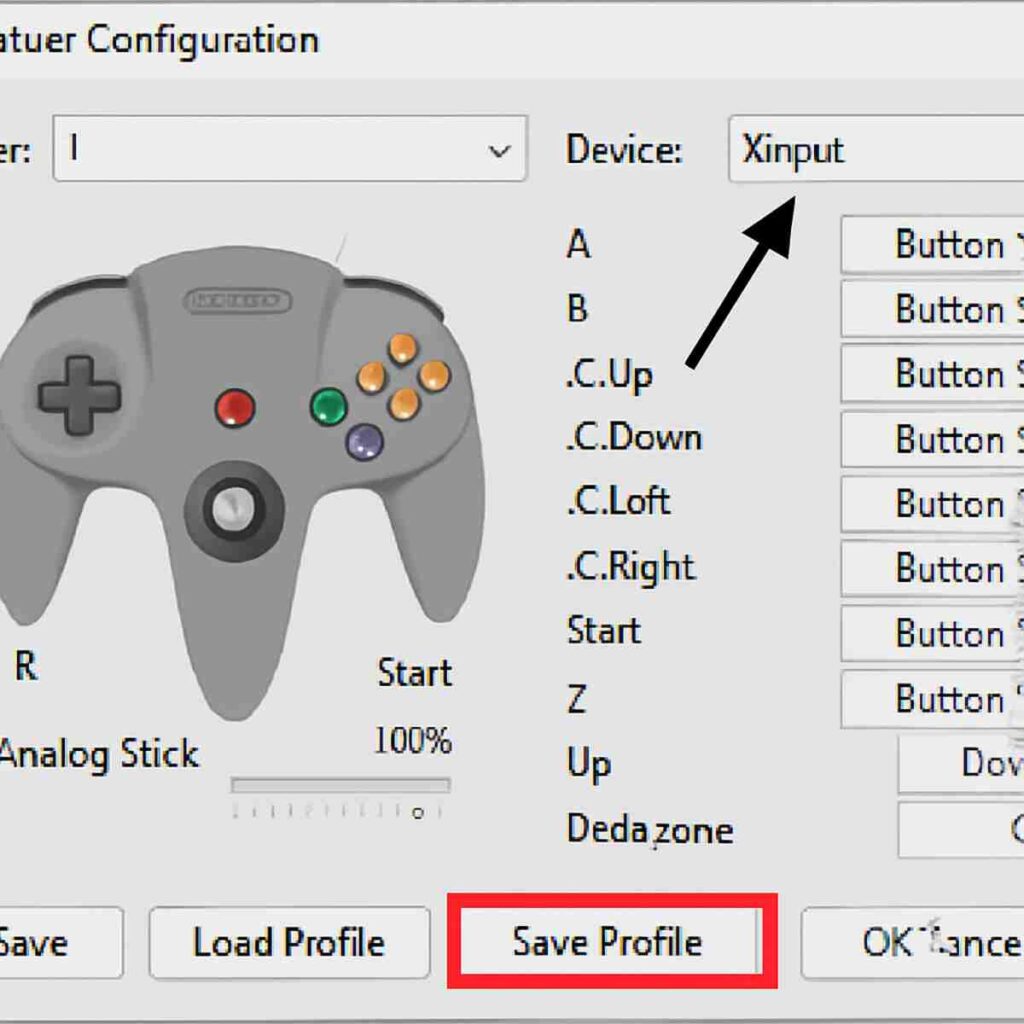
Playing Mario 64 with a keyboard is possible, but it feels a bit like trying to eat spaghetti with a spoon—it just isn’t right. To get that genuine N64 experience, you’ll want to use a modern gamepad, like an Xbox or PlayStation controller. Your emulator needs to know how to translate your controller’s modern buttons into the N64’s classic layout. To do this, plug your controller into your computer, then in Project64, click Options on the top menu and select Configure Controller Plugin. This opens the central hub for all your control settings.
A new window will pop up that looks a bit complicated, but it’s actually very straightforward. If you’re using an Xbox controller, find the dropdown menu for “Gamepad” and make sure XInput is selected; this is the setting that lets it work flawlessly. Now, you’ll see a list of N64 buttons (like A, B, and the yellow C-Buttons). To map a button, simply click the empty box next to an N64 button name, and then press the button you want to use on your own controller. For example, click the box for “A Button,” then press the ‘A’ button on your Xbox controller. Go down the list and assign a physical button for each N64 function until you’re happy with your layout.
Once you’ve assigned all your buttons, don’t just click “OK”! You’ll want to save this setup so you don’t have to do it again. On the right side of the window, you’ll see a section for Controller Profiles. Click the Save Profile button and give your setup a memorable name, like “Xbox Layout.” Now, anytime you start the emulator, this configuration will be ready to go. You have a virtual console, a library of games, and a perfectly tuned controller. You’re officially ready for the main event: bringing a friend into your game.
Step 4: Hosting an Online Game for Your Friends to Join
You’re all set up and ready to bring a friend into the game. In the world of online emulation, one person acts as the “host”—think of it as being the one to turn on the console and put the game in. Your computer will run the game, and your friend will connect directly to you. Your first step is to launch the game in a special online mode.
To start a multiplayer session, open your emulator but do not load a game the normal way. Instead, go to the File menu at the top of the screen and click on Start NetPlay. This tells the program you want to play with someone over the internet. You will then be prompted to select the game (the ROM file) you want to play, such as Mario Kart 64.
A new window titled “AQZ NetPlay” will appear. By default, it opens on the “Host” tab, which is exactly where you need to be. The program automatically creates a special connection code for your game session. This code is your public IP address followed by a port number (e.g., 123.45.67.89:27886). This is the magic key your friend needs to join your game. Simply highlight this entire code and copy it.
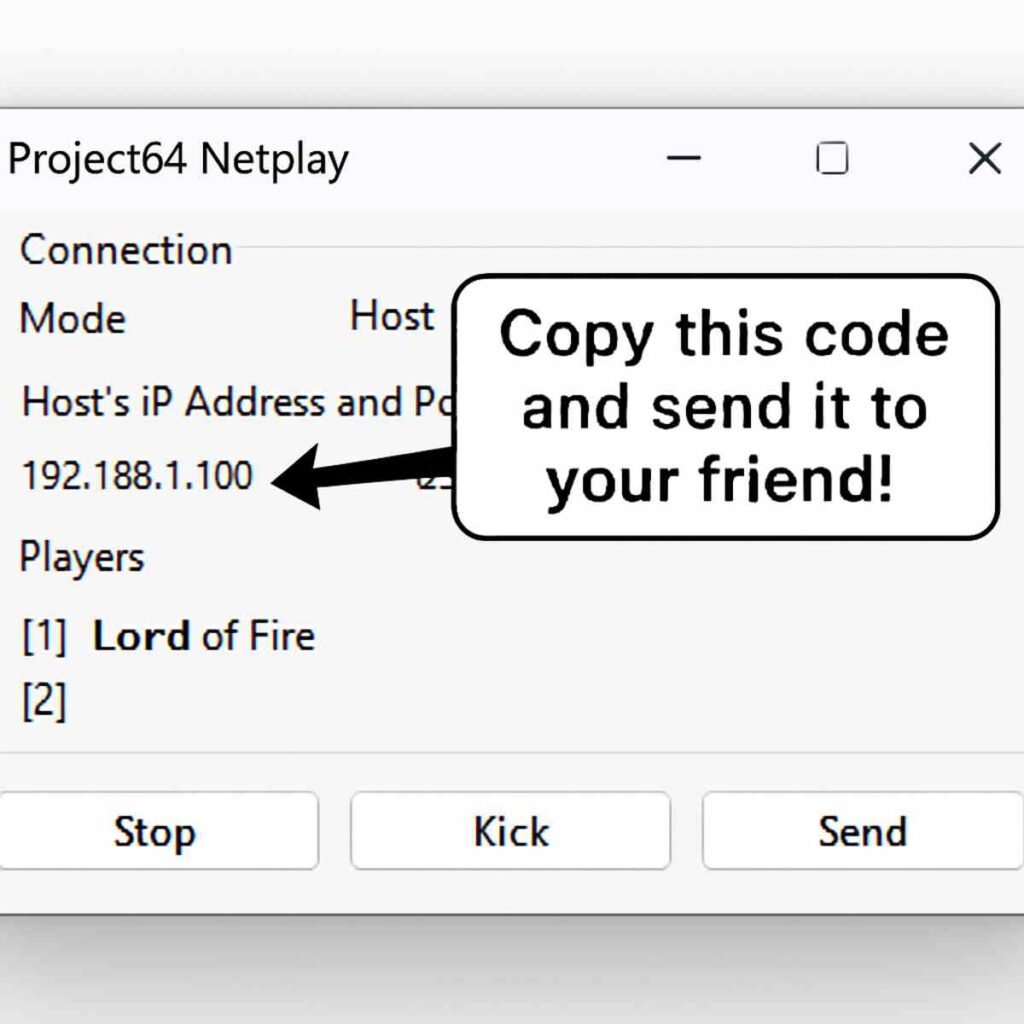
With that code copied, paste it into a message and send it to your friend through Discord, text, or any chat app. The game itself won’t start just yet; your emulator is now waiting for your friend to connect using that code. Once they join, the game will launch automatically for both of you. All that’s left is for your friend to know what to do with the code you just sent them.
Step 5: Joining a Friend’s Online Game
If you’re the one joining the game, your job is even easier. Your friend, the “host,” has already done the work of setting up the session. All you need to do is use the special connection code they sent you to jump into their game. Think of it like they’ve already plugged in the console and put the cartridge in; you’re just grabbing the second controller.
Just like the host, you’ll need to open your emulator and go to the File menu, then click Start NetPlay. This will bring up the same “AQZ NetPlay” window, but instead of using the “Host” tab, you’ll click on the one right next to it labeled Join. Here, you’ll see a field to enter the code. Simply paste the entire code your friend sent you into this box and click the Connect button.
Once you click Connect, there’s nothing else to do but wait a moment. The program will connect to your friend’s computer, and the game will spring to life for both of you at the same time. You’re now officially playing online together! Of course, a perfect connection isn’t always guaranteed, and sometimes you might run into a bit of lag, which we can help you tackle next.
How to Fix Common Online Lag and Stuttering
Even with a great internet connection, you might notice that your game feels slightly “off.” Perhaps you press the jump button, but your character doesn’t leap for a split second. This is called input lag, and it’s a common hurdle in online emulation. It happens because the emulator has to wait for signals from both your computer and your friend’s before it can show the next frame, making sure you both see the exact same thing.
Thankfully, there’s a simple setting to control this, called the Buffer. Think of it as a small waiting room for your and your friend’s controller inputs. A larger buffer gives more time for slow signals to arrive, preventing stuttering, but it can make your controls feel delayed. A smaller buffer makes your controls feel instant, but can cause the game to get choppy if your connection isn’t perfect.
You can adjust this directly in the NetPlay window to find the right balance:
- If your controls feel delayed: Try lowering the Buffer setting. The default is often 3 or 4, so try setting it to 2.
- If the game is choppy or stutters: Try increasing the Buffer. Setting it to 5 can often smooth things out.
Sometimes the problem isn’t lag at all, but audio stuttering that makes the whole game feel broken. If you’re hearing a lot of crackling or popping, go to your emulator’s main Settings menu, find the Audio Plugin section, and simply try switching to a different option from the dropdown list. If tweaking these settings still doesn’t give you the perfect experience, don’t worry—there are a few other ways to get your game on.
What Are the Alternatives? Browser Emulators and Parsec Explained
If tweaking settings sounds like more trouble than it’s worth, you might prefer a simpler path. A quick search for the best browser based n64 emulator will reveal websites that let you play directly in your web browser, often with no installation. You just upload your game file—perfect for a quick solo adventure in Zelda Ocarina of Time web based. While convenient, these sites usually lack built-in multiplayer features and may not run as smoothly as a dedicated program.
For a completely different approach to multiplayer, there’s a fantastic tool called Parsec. Think of it as a virtual couch for gaming. Instead of both people running an emulator, only one person (the “host”) runs the game on their computer. Everyone else connects to their screen and can play along as if they were in the same room, using their own controllers. This makes setting up Parsec for retro gaming a popular choice because guests don’t need any emulators or game files at all.
Ultimately, your choice comes down to convenience versus control. The dedicated emulator method this guide focuses on gives you the most control over performance, but requires setup for everyone. Browser emulators offer instant fun for solo play, and Parsec provides multiplayer simplicity by putting the workload on a single host. All of these are excellent alternatives to a physical N64 console, ensuring there’s a way for everyone to dive back into these classics.
Your N64 Online FAQ: Chromebooks, Save States, and More
As you get ready to start your first online game, you might have a few lingering questions. This quick FAQ tackles some of the most common ones, ensuring you have all the information you need before you dive in.
First, many people ask, can you play n64 on a chromebook? The specific program we use in this guide is built for Windows computers, so it won’t work on a Chromebook. However, the browser-based emulators we mentioned in the last section are a perfect alternative. Since they run entirely in a web browser, they are an excellent option for Chromebook users looking for a quick solo-play session.
Another common point of confusion involves save files. While you might be used to making “save states”—instant snapshots of your game—you’ll find that online n64 save states typically don’t work. Think of it like a shared movie: if one person tried to skip to a different scene, it would ruin the experience for everyone else. To keep the games in sync, you must use the game’s built-in save system, just like on the original console.
Finally, you might wonder about Project64 vs Mupen64Plus for netplay. While both are great emulators, we recommend Project64 in this guide because its online multiplayer setup is generally more straightforward for beginners. Our goal is to get you playing with friends with the fewest headaches, and Project64 offers one of the smoothest paths to doing just that.
You’re Ready to Game: What You Can Do Right Now
What was once just a fond memory—huddling around a TV to play your favorite games—is now possible again, no matter the distance. You’ve gone from wondering if you could play N64 games with friends online to knowing exactly how to make it happen. The technical hurdles are cleared, and you’re ready for a new era of retro gaming online.
Ready to launch your first game? This N64 multiplayer online guide has prepared you. Here is your simple, three-step action plan:
- Send this guide to a friend.
- Decide on a game to play first (Mario Kart 64 is a great start!).
- Follow the steps together to host and join your first game.
This is where the instructions end, and your new memories begin. You now have everything you need to reconnect with old rivals and laugh your way through those beloved pixelated worlds all over again. Congratulations! The race for first place in Wario Stadium is about to begin.